
This video shows you how to export a gpx file from an activity you have recorded using Outdoor Active and then importing it into Mountain Training’s Dlog. This work flow can greatly speed up your record keeping and keep your records accurate in your Dlog.
Step 1.
Login to your outdoor active account: https://www.outdooractive.com/en/
Step 2.
Go to your recorded “Tracks”(Menu – My Page – Tracks): https://www.outdooractive.com/en/mypage/tracks.html
Step 3.
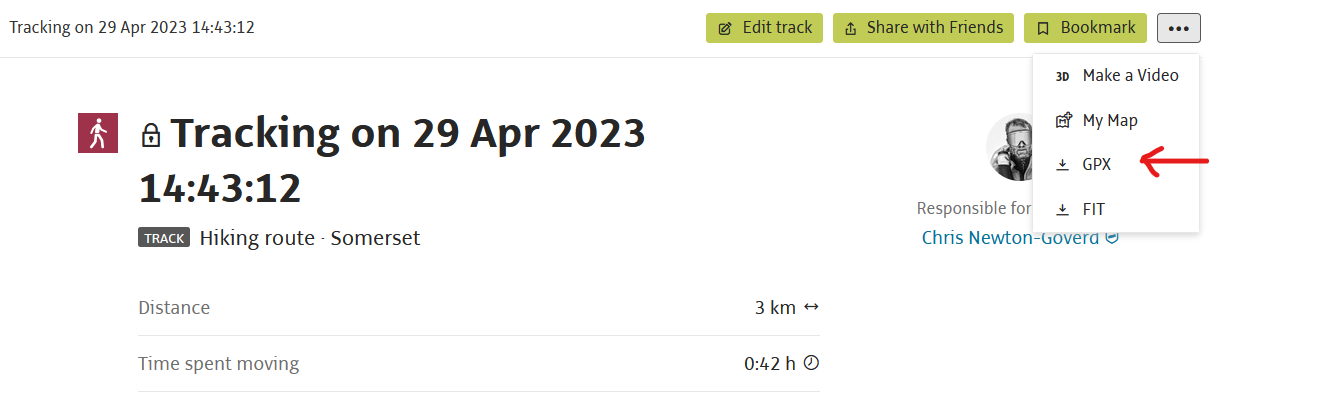
Select the track you want to export, then hover over the 3 dots and click on “gpx”
Step 4.
Download this to your local computer.
Step 5.
Go to your Dlog account – click “Add”
– select the activity
– scroll down to the “Or Create From GPX File”
– click “Browse”
– navigate to the location you saved the gpx file and select it.
– click “Upload”
– make any edits to the details section (saves automatically)
– make an edit to the description, add meaning full information about the activity
– click the green tick to save the description
– all done, repeat for the next activity you want to import into Dlog.